Make room for a middle click
Choose a tap or finger click to open links in new tabs and use middle-click actions in your favourite apps.

Open links, drag with a middle click, and pinch to zoom. Choose the gestures that fit the way you work.
13+
Free 14-day trial. Only days you use a gesture count.
Press the trackpad to try the sample.
Choose a tap or finger click to open links in new tabs and use middle-click actions in your favourite apps.
Click and hold for middle-drag in compatible design tools. Pinch to zoom and rotate with two fingers on your Magic Mouse.
Configure your mouse and trackpad separately. Choose from supported finger clicks and taps, including a four-finger trackpad tap.
Adjust tap timing, finger drift and pinch sensitivity. Small controls help your gestures feel more natural.
Ignore individual apps, or use keyboard zoom in apps that do not respond to a native pinch.
Native settings, guided setup and launch at login keep your gestures close without another window in the way.
Preview images can differ from the version you download.
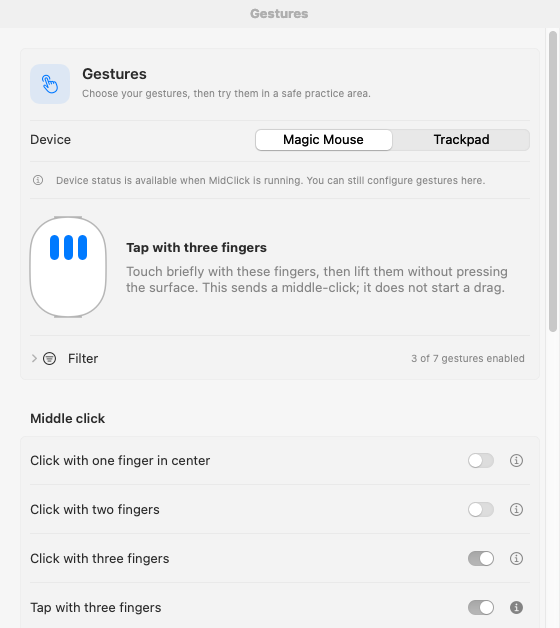
Configure Magic Mouse and trackpad gestures.
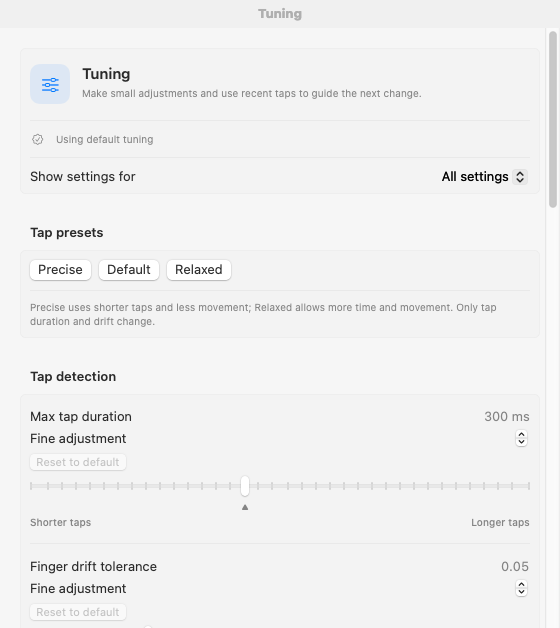
Adjust tap timing and finger drift.
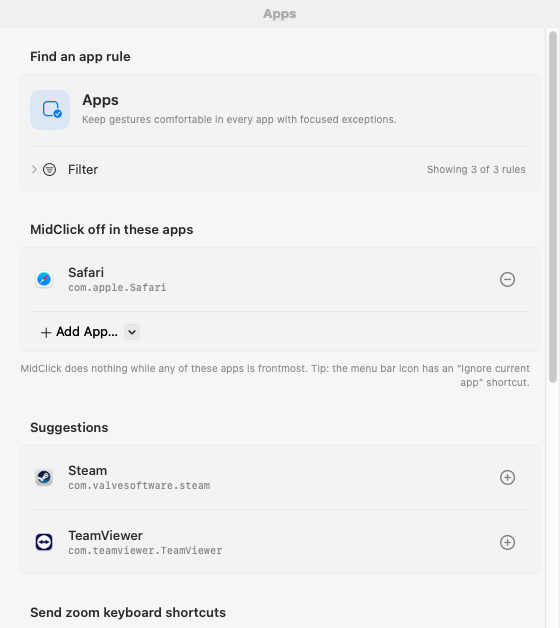
Find app rules and choose where gestures work.
Have another question?
Get in touch.
A Mac with macOS 13 Ventura or later, an Intel or Apple silicon processor, and a Magic Mouse, built-in MacBook trackpad or Magic Trackpad. Grant MidClick Accessibility permission during setup to enable your gestures.
Yes. MidClick works with the built-in MacBook trackpad and Magic Trackpad. Choose a three-finger click, three-finger tap or four-finger tap for middle-click in Settings. You can enable each gesture separately, and macOS three-finger drag continues to work alongside them.
MidClick uses Accessibility permission to deliver the mouse and gesture actions you enable. Setup explains how to grant it, and you can revoke it in macOS System Settings.
The receiving app decides how to respond to middle clicks, drags and zoom gestures. You can exclude apps and enable keyboard zoom where native pinch is not supported.
No. Gesture recognition happens on your Mac. MidClick does not log typed keys, read the clipboard or record your screen. Update requests and support messages are described in the privacy policy.
Download MidClick directly from this website and try it for 14 days of actual gesture use. Idle days do not count. A one-time US$3.99 purchase before applicable checkout tax covers three Macs and all 1.x updates. Buy through Lemon Squeezy, then enter the key from your receipt in Settings → License. Activation requires internet access; signed receipts last up to 30 days and renew after seven days. Voluntary refunds are available within 30 days of purchase.
Other apps you might enjoy.
Find what you copied on your Mac. Save useful text and images deliberately on Android. Two local libraries, made for the way each device works.
macOS, Android phones & tablets
A native Markdown editor for notes, plans and documentation. Write in the source, read or edit in Preview, and keep your words in ordinary files.
Mac, iPhone & iPad, Apple Vision Pro, Android phones & tablets
A regex crossword game. Fill rectangular and rotating hexagonal grids until every line matches its clue.
iPhone & iPad, Mac, Android phones & tablets, Apple Vision Pro